Brands and tags
How to create brands and tags to organize your catalog, and how tags become quick filters at the point of sale.
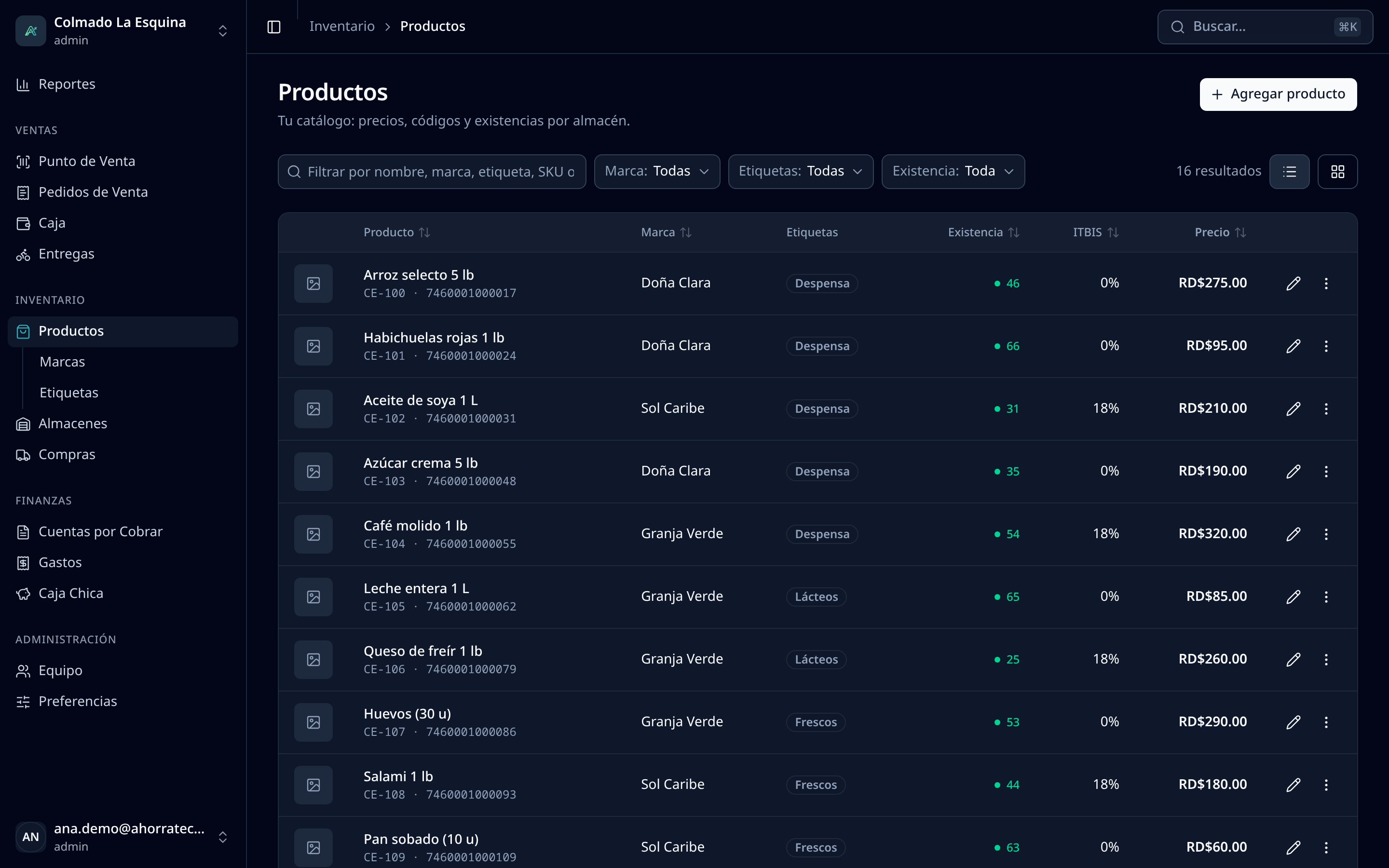
Brands and tags help you organize your catalog. Every product has one brand and can have several tags. Tags also show up as buttons at the point of sale, so cashiers find products faster.
Who can do it
Users with the administrator (admin) or inventory (inventory) role see Brands and Tags in the menu, under Products.
Brands
Every product needs a brand. Use it for the maker or the product line (for example, the brand of the rice or the paint). If a product has no known brand, you can create a generic one, such as “No brand” or your business’s name.
- Go to Products › Brands.
- Press Add brand.
- Type the Name and press Save.
To rename it, press Edit on its row. To remove it, open the row’s menu and press Delete. A brand that a product still uses can’t be deleted: change those products’ brand first.
Tags
Tags group products across brands: “Drinks”, “Deals”, “Plumbing”, “Breakfast”. A product can carry as many as you need.
- Go to Products › Tags.
- Press Add tag.
- Type the Name and press Save.
To rename it, press Edit on its row; to remove it, open the row’s menu and press Delete.
Tip: you don’t need these pages to create a new brand or tag. In the product form, type the name in Brand or Tags and pick the Add new option that appears in the list.
Assign them to a product
Open the product in Products and, under Brand and tags, choose the Brand and one or more Tags. Save with Update Product. The full form is explained in Create and edit products.
How they look at the point of sale
At the POS, above the product grid, there is a row of rounded buttons:
- The first one is All Products and shows the whole catalog.
- Next comes one button per tag that has at least one product, in alphabetical order.
- Tapping a tag shows only its products in the grid. The search still works inside that tag.
A tag that no product uses doesn’t appear at the POS. That’s why a few clear tags work best: think about how your cashier looks for things when there’s a line.
In the product list
In Products, the table shows each product’s brand and tags, and the Brand and tag filters let you see just part of the catalog. The search also finds products by their brand or tag names, both in the catalog and at the POS.
Related articles
Didn’t find what you were looking for?
Write to us on WhatsApp or through the contact form and we will help.