Warehouses and stock
How to create warehouses, see how many units each one holds and understand what makes a product's stock go up or down.
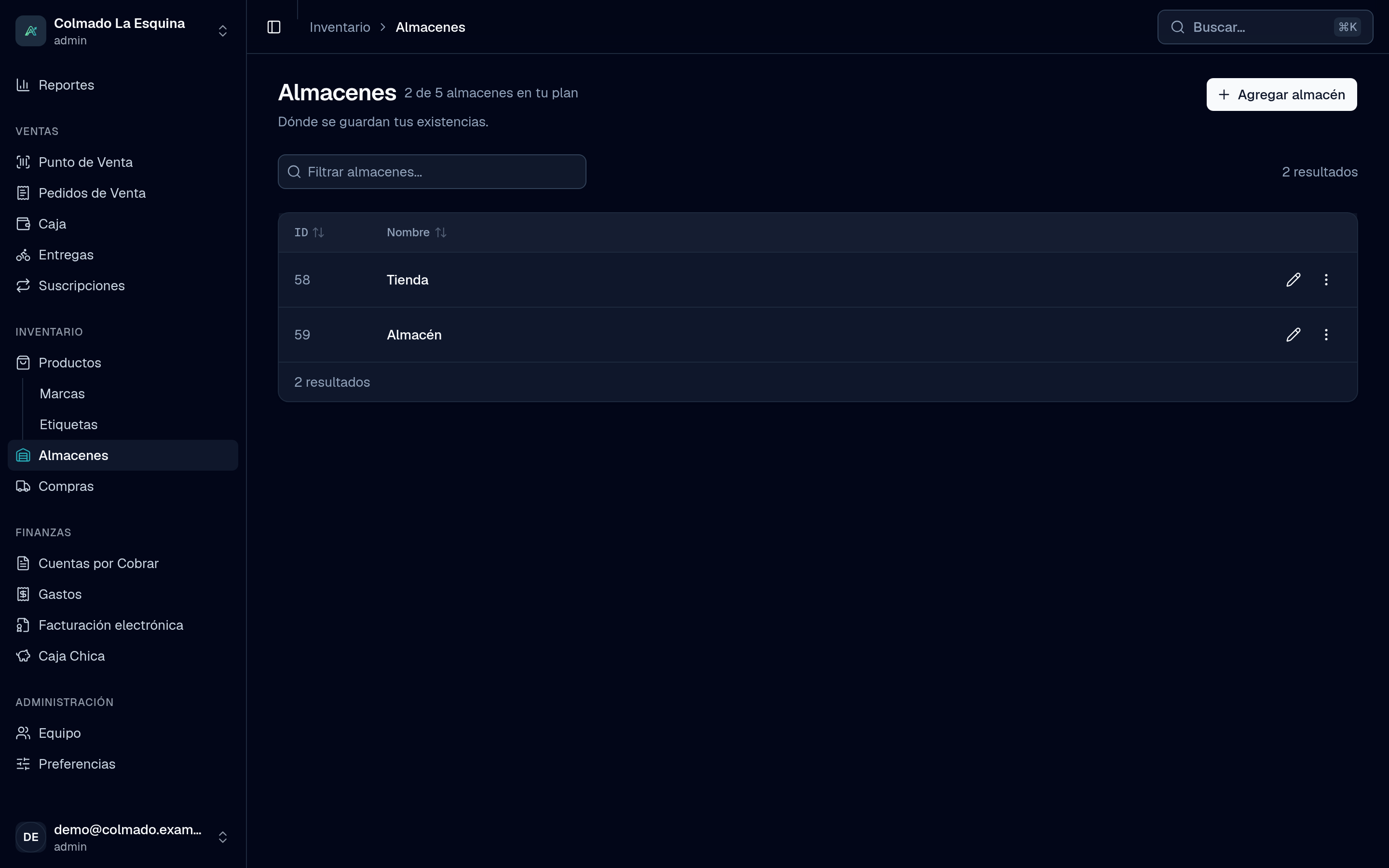
A warehouse is any place where you keep goods: the shop floor, the storeroom in the back or a second store. Ahorra POS tracks each product’s stock per warehouse, and every sale comes out of the warehouse the cashier picks.
Who can do it
Users with the administrator (admin) or inventory (inventory) role see Warehouses and Products in the menu and can adjust stock.
Create a warehouse
- Go to Warehouses (under Inventory).
- Press Add warehouse.
- Type the Name (for example, “Store” or “Storeroom”) and press Save.
To rename it, press Edit on its row. A warehouse that still has products or movements tied to it can’t be deleted.
How many warehouses you can have depends on your plan. Above the list you see how many you use out of what your plan allows; at the limit, the Add warehouse button is disabled and you can request a plan change. Compare the plans on Pricing.
See stock per warehouse
- In Products, the Stock column adds up every warehouse. Click or tap the number to see how much each one holds.
- In Card view, each product shows its WAREHOUSE STOCK.
- At the POS, the Selling from picker sets which warehouse the sale comes out of, and each product shows how many units are there.
A product shows as Out of stock when it has no units left, and as low stock when it has fewer than 10 across all warehouses. Use the Stock filter in Products to see only the Low or Out of stock ones.
What changes the stock
Stock moves by itself with what happens in the business:
- Sales: when a sale is charged, or sold on credit, its products leave the sale’s warehouse. A quote doesn’t deduct anything. A delivery order sent out unpaid is deducted when it leaves with the driver. You can’t sell more than that warehouse holds.
- Purchase receipts: when you receive goods from a purchase order, the units go into the warehouse you choose, and the product’s cost is updated.
- Voids and returns: when you void a sale, return items or cancel a delivery, the goods go back to the warehouse.
- Manual adjustments: when you count and the figure doesn’t match, you correct it.
Adjust stock by hand
- In Products, find the product and choose Adjust Stock.
- Type the real quantity in each warehouse. If the product wasn’t in a warehouse yet, add that warehouse to the list.
- Press Set Stock.
The number you type replaces the old one: it isn’t added. You can also change the quantities from the product form, under Warehouse Stock Levels.
Important: the app has no transfers between warehouses. To move goods from one warehouse to another, adjust both quantities: subtract in the one they leave and add in the one they enter.
Tip: for purchases, don’t adjust by hand: receive the goods from the purchase order. That keeps the product’s cost and your reports up to date.
Related articles
Didn’t find what you were looking for?
Write to us on WhatsApp or through the contact form and we will help.