Record expenses
How to record an expense paid now or on credit with its 606 data, attach the invoice, record partial payments and issue the E41 or E43 yourself when it applies.
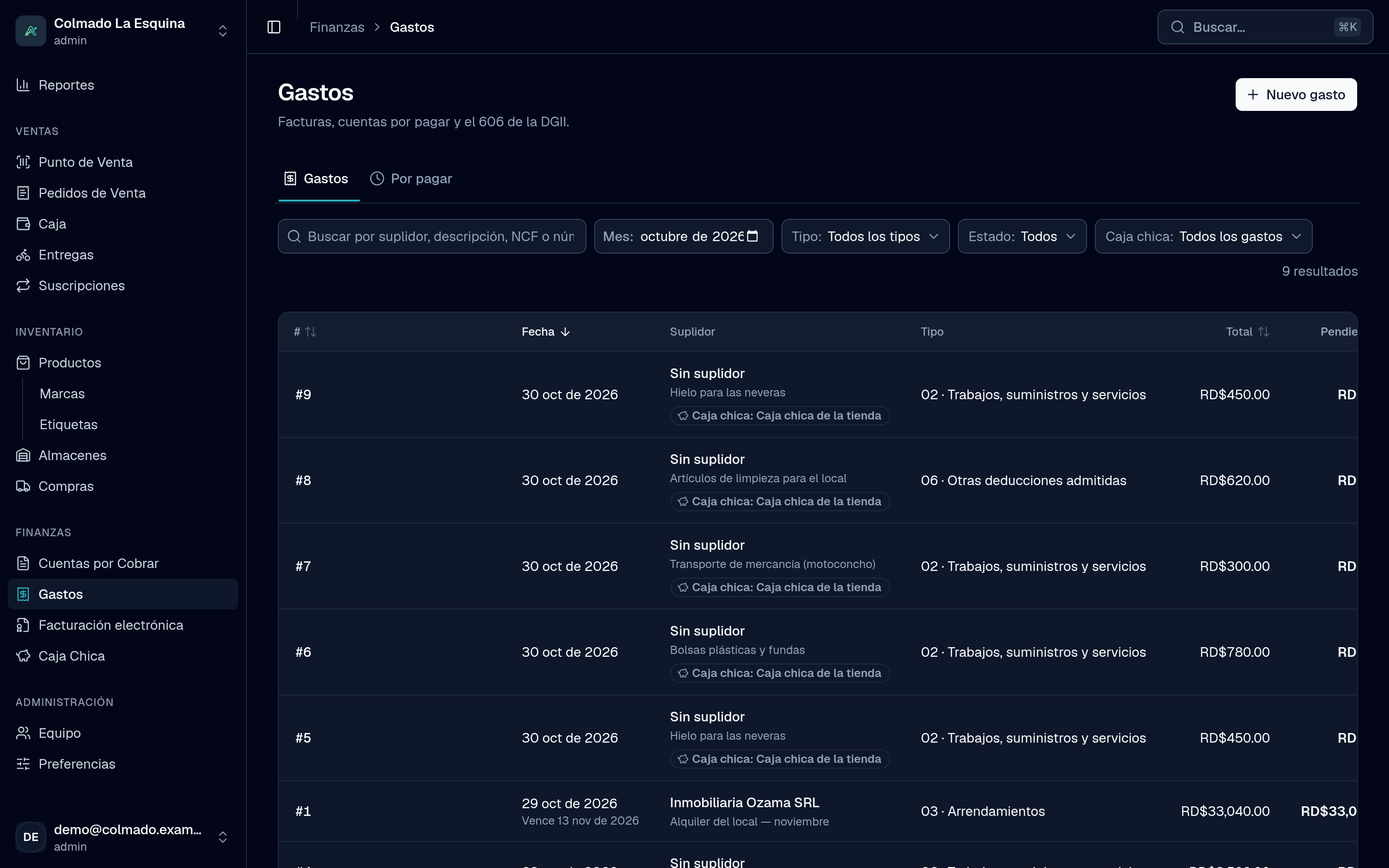
In Expenses you record everything your business pays for that isn’t goods to resell: electricity, internet, rent, a technician. Each expense keeps the data the DGII’s 606 asks for, can stay on credit and take payments in parts. Expenses is available from the Pro plan; see the plans on Pricing.
Who can do it
By default, only administrators (admin) see Expenses: they record, edit and pay expenses, and are the only ones who can void them.
Record an expense
- Go to Expenses (under Finance) and press New expense.
- Under General data, choose the Supplier or create one with New supplier. It’s optional for informal purchases.
- Type the NCF from the supplier’s invoice, the Description (for example, “Internet September”), the 606 type and the Invoice date.
- Under Attached invoice, drop the invoice or a photo: PDF, JPG or PNG up to 10 MB each. It uploads when you save.
- Under Amounts and ITBIS, split what is Services and what is Goods, choose ITBIS separate or ITBIS included and the rate: 18%, 16% or No ITBIS. The app works out the ITBIS billed.
- Under Withholdings and DGII breakdown, check what the app calculated from the NCF type. With Adjust amounts you type the ITBIS retained, the ISR retained and its type, the ITBIS subject to proportionality or taken to cost, the ISC, Other taxes and the Legal tip yourself.
- Under Payment terms, choose Paid now (with Paid with, Payment date and Reference) or On credit (with the Due date).
- Check the Financial summary and press Record expense.
The NCF and withholding fields appear when your business is enrolled with the DGII (Preferences › Tax data). An expense’s money doesn’t come out of the cash register: it’s paid by bank, card or with the owner’s cash. For small cash payments, use petty cash.
Tip: if you see “It will be saved, but:” when saving, the app is warning you the expense wouldn’t be deductible: for example, because it has no NCF or it’s a consumer invoice. It’s saved anyway; the warning is so you can fix it if you can.
Expenses on credit and partial payments
An expense On credit stays Unpaid until you pay it. To pay it, in full or in parts:
- Open the expense and press Record payment.
- Type the Amount, choose Paid with (Transfer / cheque, Cash, Card, Barter or Credit note) and the Payment date.
- Press Record payment.
With a partial payment the expense becomes Partially paid; once complete, Paid. The Payables tab shows the Total owed and every open expense, with its due date and how many days overdue it is.
Issue the receipt yourself: E41 and E43
Sometimes your business issues the tax receipt instead of the supplier. If you’re enrolled with the DGII, issue tax receipts and have a valid sequence, a new expense shows Receipt with these options:
- The supplier provides it: the normal case; you type their NCF.
- Issue a purchase receipt (E41): for purchases from a person who isn’t registered as a taxpayer. The supplier needs a cédula. The app withholds 100% of the ITBIS and, on services, 10% ISR.
- Issue a minor expense receipt (E43): for minor expenses. It carries no withholdings, its ITBIS goes to cost and the expense is recorded as paid.
The receipt is issued with today’s date, so the expense date must be today, and no supplier NCF is typed. With electronic invoicing it is signed and sent to the DGII when you save; with series B, a B11 or B13 from your sequence is assigned. The expense detail shows the receipt issued and its status, and with an e-CF you can use Print receipt to hand it to the supplier. An expense with its own receipt can no longer be voided, and only its type, description and due date can change.
The 606
In the 606 tab, choose the Period and press Download TXT to upload it to the DGII’s Oficina Virtual. You need your business’s RNC in Preferences › Tax data. See Tax reports 606, 607 and 608.
Void an expense
Open the expense and press Void, with the reason. The expense and its payments stop counting in reports, in what you owe and in the 606.
Related articles
Didn’t find what you were looking for?
Write to us on WhatsApp or through the contact form and we will help.