Petty cash
How to create a petty cash fund with its custodians, record minor expenses from a phone, top the fund up and count it.
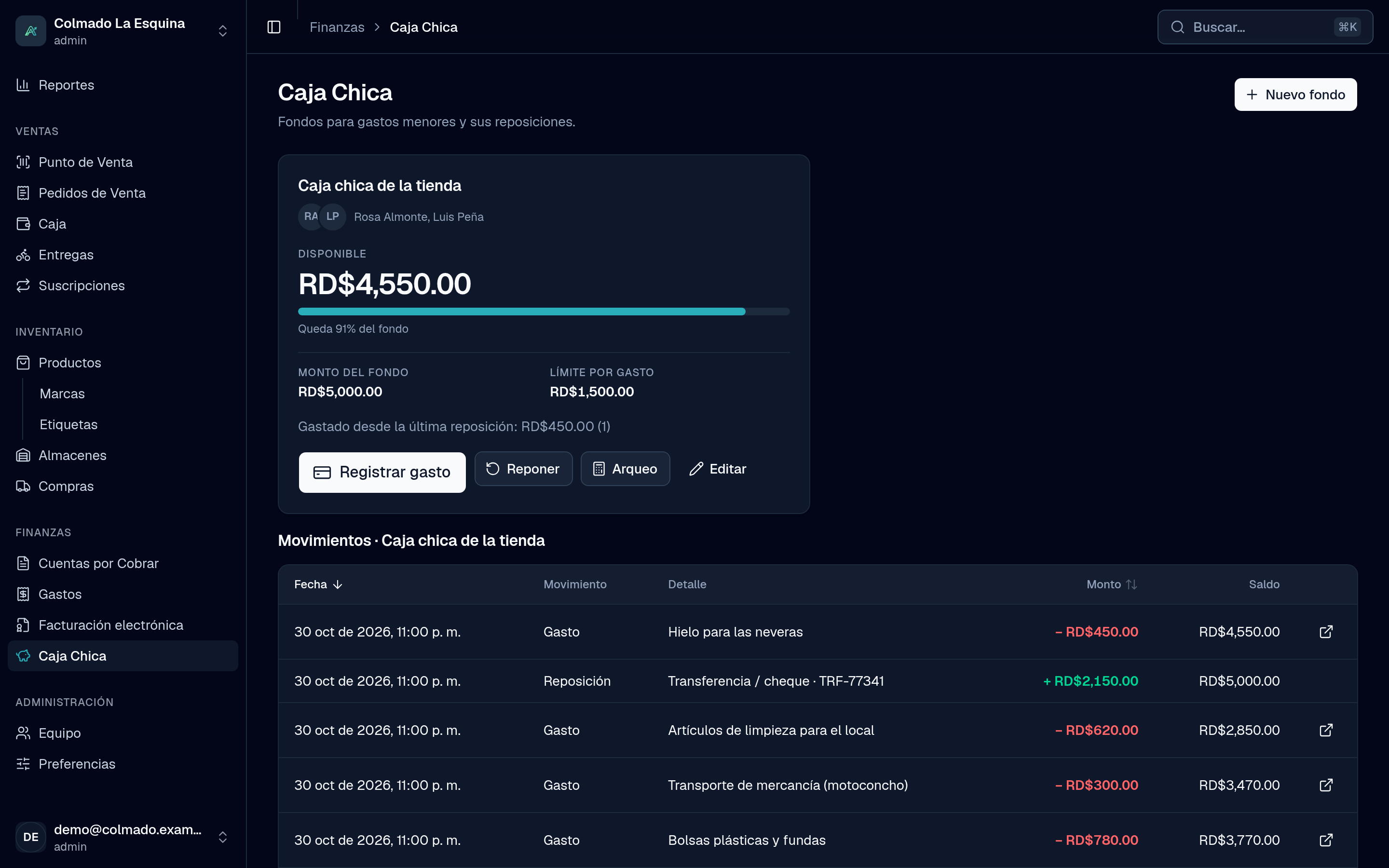
Petty cash is a cash fund for small day-to-day expenses: fuel for the truck, a messenger, cleaning supplies. Each fund has one or more custodians who spend from it, and every expense is recorded in Expenses with its receipt. Petty cash comes with the expenses module: it’s available from the Pro plan. See the plans on Pricing.
Who does what
- The administrator (admin) creates the funds, picks the custodians, tops the funds up and counts them.
- Custodians spend from the fund assigned to them. Only a fund’s custodians can spend from it, even administrators. To open the page, a custodian needs a role with petty cash access: by default, administrator, cashier (cashier) or driver (delivery).
If you open Petty Cash and you aren’t a custodian of any fund, you’ll see “You don’t have a petty cash assigned”.
Create a fund
- Go to Petty Cash (under Finance) and press New fund.
- Type the Name (for example, “Main petty cash”) and the Fund amount: the amount it returns to every time you top it up.
- If you like, set a Limit per expense. It can’t be more than the fund amount.
- Under Custodians, choose who can spend from the fund.
- Under Funded from, say where the money came from: Bank transfer / cheque, Owner or Cash, with its Reference if you have one.
- Press Create fund.
With Edit you change the name, amount, limit or custodians. If you deactivate the fund, its balance is withdrawn.
Record an expense (custodian)
The screen is designed to be used from a phone.
- In Petty Cash, press Record expense on your fund. At the top you’ll see the available Balance and the limit per expense.
- Type the amount paid and choose whether the ITBIS is included or separate, and its rate (or No ITBIS).
- Type the Description (for example, “Fuel for the truck”) and choose What for.
- Under Receipt photo, take a photo of the receipt or pick a file (PDF, JPG or PNG up to 10 MB).
- If your business issues tax receipts and has the sequence, you can turn on Issue a minor expense receipt (E43) (or B13 in series B). Its ITBIS can’t be claimed.
- Press Record expense.
The money leaves the fund right away. If the expense is over the limit per expense, record it on the Expenses page; if the fund doesn’t have enough, the app won’t let you record it.
How it ties into Expenses
Every petty cash expense shows up in Expenses as paid, marked with the fund’s name, and you can filter the list by fund. Its amounts can’t change; if there’s a mistake, void it and record it again. What the administrator can complete is the supplier, the NCF and the type for the 606. When you void a petty cash expense, the money goes back to the fund, unless a top-up has already covered it.
Top up the fund
- On the fund, press Top up.
- The app suggests the amount that brings it back to the Fund amount and tells you how many expenses it covers since the last top-up.
- Choose where the money comes From, add a reference or notes and press Top up.
When it’s done you can print the top-up voucher, with the list of expenses covered and space for the custodian’s and the approver’s signatures.
Count the fund
- On the fund, press Count.
- Count the cash, by bill and coin if you like. The app compares what was Counted with the Expected (balance).
- You’ll see whether there’s a Shortage, a Surplus or “The cash matches.” Add notes and press Record count.
A difference shows up in the movements as a Count adjustment.
The movements
With Ledger you see the fund’s history: Opening, Top-up, Expense, Expense voided, Count adjustment and Withdrawal, each with its amount and the balance after it.
Tip: top the fund up regularly, for example every week, and count it before each top-up. That way you catch any difference early.
Related articles
Didn’t find what you were looking for?
Write to us on WhatsApp or through the contact form and we will help.