Cash register
How to open the register with a float, follow the shift, close it with a blind count and print the closing report.
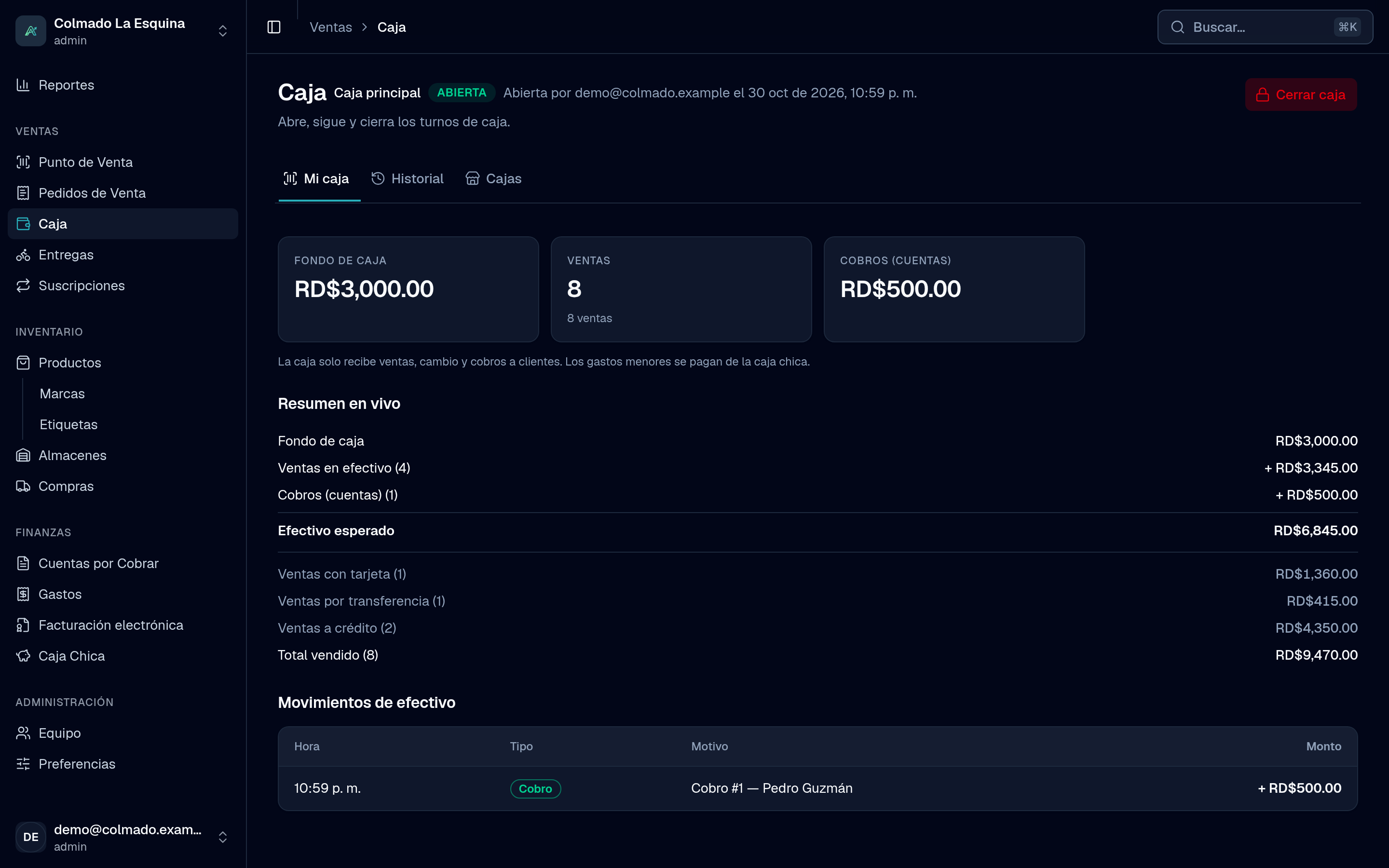
The register is each cashier’s shift: it opens with the cash in the drawer, takes the sales and closes by counting the money. Ahorra POS compares what you counted with what was expected and tells you whether the drawer was over, short or balanced.
Who can do it
- My register: users who sell (the cashier and admin roles) open and close their own register. No sale can be charged without an open register; quotes can still be saved.
- History: each cashier sees their own shifts; admins see everyone’s.
- Registers: only admins create, rename and deactivate registers.
Drivers open and close their register from the Delivery screen (see Deliveries).
Open the register
- Go to Cash Register in the menu (or tap Open register on the POS warning).
- Tap Open register.
- In Open register, pick the Register. Ones someone else is using show In use by and can’t be picked.
- Type the Opening float, the cash you start with, or turn on Count by bills and coins and enter how many bills and coins of each value you have.
- Tap Open register.
If your business has no registers yet, one called “Caja 1” is created the first time. Each person has one open register at a time, and each register is used by one person at a time. On the POS you’ll see the open register and its opening time next to the search.
During the shift
My register shows the Opening float, the number of Sales, the Collected (accounts) you received from credit customers and, if any, the Refunds. Cash movements fills in by itself with customer payments, voided payments and the refunds of voids and returns.
The register only takes sales, change and customer payments: there are no manual cash in or cash out entries. Pay minor expenses from the petty cash.
The count is blind: cashiers don’t see the expected cash while the register is open. Admins do see each shift’s Live summary. If a register has been open since a previous day, the app reminds you.
Close the register
- In My register, tap Close register.
- Count all the cash in the drawer. By default you enter it by bills and coins; if you prefer, turn off Count by bills and coins and type the Counted cash.
- If needed, leave a note for the manager in Notes.
- Tap Close register and confirm. The count can’t be changed afterwards.
Once closed you’ll see the result: the float, cash sales, refunds and collections, the Expected cash, the Counted cash and the Difference (Over, Short or Balanced). Below are the card, transfer and credit sales and the Total sales, which don’t affect the cash in the drawer.
Tap Print report for the Closing report: a PDF with sales by payment method, the cash in the drawer, the movements, the count by denomination and space for the cashier’s and supervisor’s signatures.
History
The History tab lists the shifts with the register, opening, closing, status, counted cash and difference (admins also see the cashier). Tap a shift to see its detail, or the printer icon to reprint a closed shift’s report.
Manage registers
In the Registers tab, admins can:
- Add a register with New register.
- Change its name with Rename.
- Deactivate or activate it. A register with an open shift can’t be deactivated until that shift is closed.
The list shows which register is Free and which one is in use, by whom and since when. How many registers you can have depends on your plan; the screen shows how many you’re using. See the plans.
Tip: Close the register at the end of every day, even if the same person opens tomorrow. That way each count covers a single shift.
Related articles
Didn’t find what you were looking for?
Write to us on WhatsApp or through the contact form and we will help.