Collections and statements
How to see what you're owed and how old it is, record a customer payment with withholdings, print the receipt and check each customer's statement.
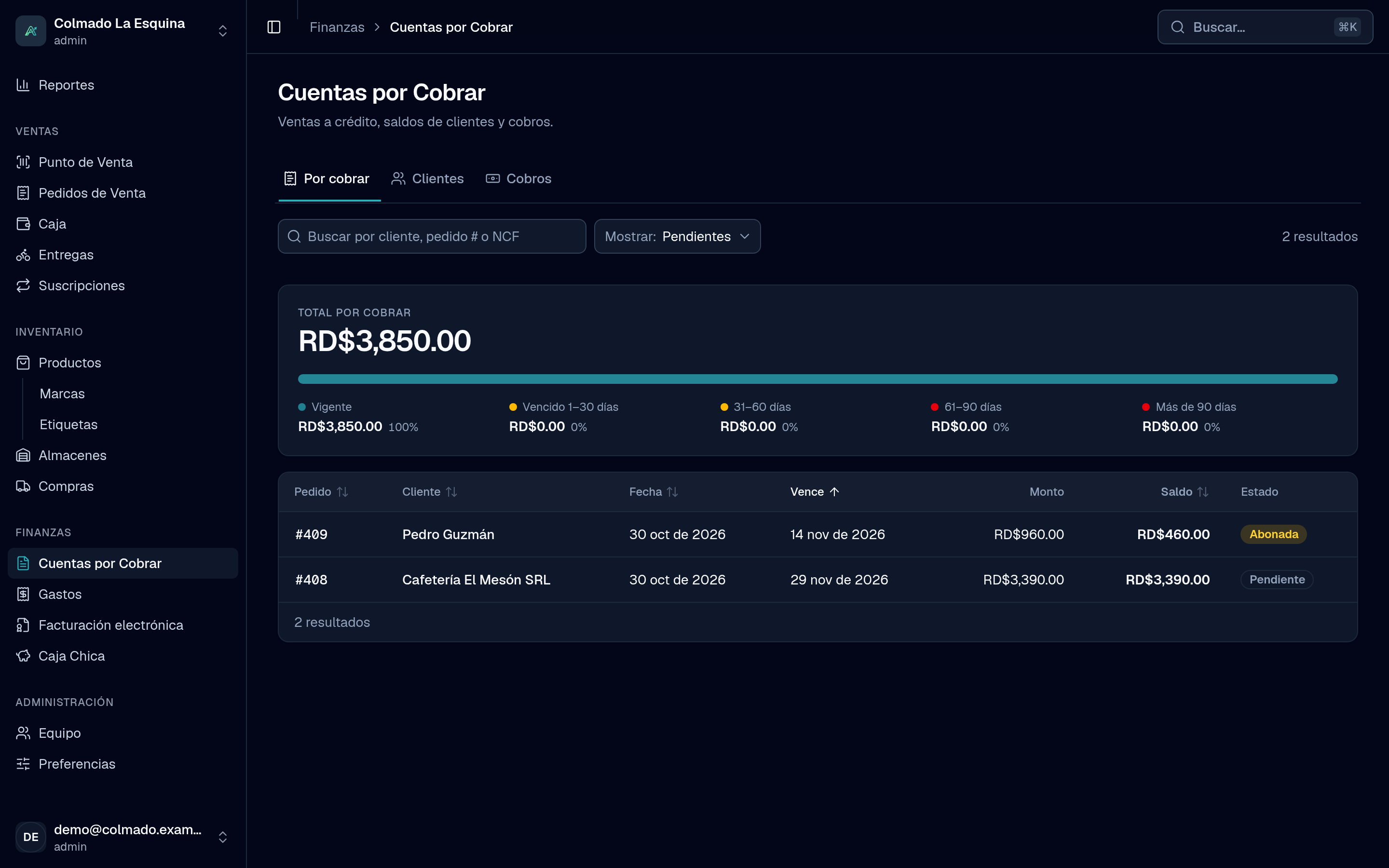
In Accounts Receivable you see how much your customers owe you, what’s overdue and who has paid. From there you record each payment (cobro) and hand over the receipt. This page comes with every plan.
Who can do it
- Cashiers (cashier) and administrators (admin) see Accounts Receivable.
- Both can record payments.
- Voiding a payment and changing a customer’s credit are for administrators only.
What you’re owed
The page has three tabs: To collect, Customers and Payments.
At the top of To collect you see the Total to collect, split by age: Not due yet, 1–30 days overdue, 31–60 days, 61–90 days and Over 90 days. Below it is each credit sale with its customer, date, due date, amount, balance and status: Pending, Partially paid, Paid or Voided, and how many days overdue it is.
With the Show filter you choose Pending, only Overdue or All. The search finds by customer, order number or NCF.
Record a payment
- Tap a sale in To collect, or a customer in Customers, to open their account.
- Press Record payment.
- Choose the payment method: Cash, Card or Transfer. Cash goes into your register, so it must be open; card and transfer work without it.
- Type the Amount to pay, or press Pay everything if they’re paying the full balance. With cash, type what they hand you and the app works out the change.
- If needed, type the Reference (voucher, transfer or cheque number).
- Check Applied to: the app spreads the payment starting with the oldest sales. You can change how much goes to each sale; Oldest first goes back to the automatic split. The amounts applied must add up to the amount received.
- Press Record payment.
When you save, the Payment receipt opens ready to print (80 mm), with the sales it paid and the remaining balance. You can reprint it later from the Payments tab with Print receipt.
When the customer withholds taxes
Some companies and government bodies pay you while withholding part of the ITBIS or ISR. If your business is enrolled with the DGII (in Preferences › Tax data, Enrolled with the DGII), the payment shows two more columns for each sale:
- In ITBIS withheld and ISR withheld, type what the customer withheld on that sale.
- Type the Withholding date: the day the customer withheld, which goes in your 607.
- Record the payment as usual. The sale’s balance goes down by what they paid plus what they withheld.
You can record a payment that is only withholdings, with no money. Keep the withholding certificate the customer gives you. What was withheld shows in Reports › Withholdings, under What your customers withheld.
The statement
When you open a customer’s account you see what they Owe, what’s Overdue, their Credit and what’s Available, and below it the Statement: each credit sale as a Charge, each payment as a Payment and the Balance after each movement. If a payment included withholdings, the line says so.
Important: the statement is viewed on screen; the app doesn’t download it as a PDF. The printable documents are the credit invoice and the receipt for each payment.
Void a payment
In the Payments tab, press Void on the payment, type the reason and confirm with Void payment. The balances of the sales it paid go back up. If it was a cash payment, that money comes out of the register it went into, and that register must still be open.
Related articles
Didn’t find what you were looking for?
Write to us on WhatsApp or through the contact form and we will help.