Deliveries
How to send a sale with a driver, follow it on the Delivery screen, and collect and deliver it from the driver's phone.
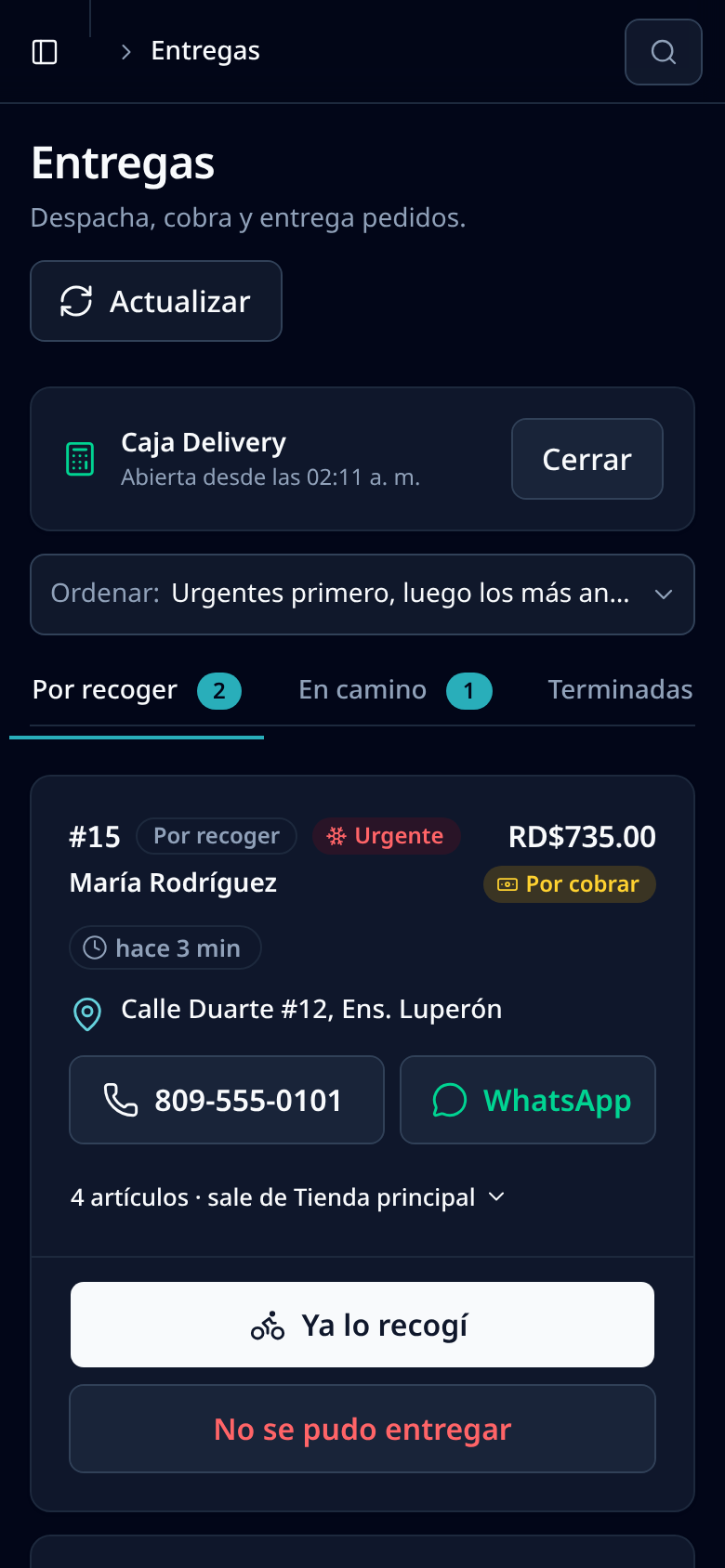
With deliveries, the cashier sends a sale with a driver from the POS, and the driver picks it up, collects payment and delivers it from their phone. You always see what’s waiting to leave, what’s on the way and what has been delivered. Deliveries are available from the Pro plan (see the plans).
Who does what
- Cashiers and admins send sales for delivery from the POS.
- Drivers: users with the “delivery” role only see the Delivery screen, with their own orders. To have drivers, give a user that role in Team (see Team and roles).
- Admins see every driver’s deliveries on Delivery, filter them by driver and mark orders as urgent.
Send a sale for delivery
- At the POS, build the cart and tap Checkout.
- Choose Send for delivery. If it’s disabled, there are no drivers yet.
- Fill in the Customer, the Delivery address and the Customer phone. If you link a saved customer, their phone and address are filled in for you (see Customers at checkout).
- Add Notes for the driver (“blue gate, call when you arrive”) and pick the Driver.
- Turn on Urgent delivery for ice, cold drinks or refrigerated medicine: it goes to the top of the list.
- Choose how it’s paid:
- Collect on delivery: the driver collects and brings the money in their register. Tap Send to driver.
- Charge now: you charge it at the counter and the driver only delivers. Tap Charge and send.
- On credit: charged to the customer’s account. Tap Continue on credit.
Charge now and On credit need your register open. Until the driver picks it up, an unpaid order can be edited in Sales Orders.
Delivery statuses
- To pick up: assigned, still at the store.
- On the way: the driver picked it up. If it wasn’t paid, the goods leave the stock at this moment.
- Delivered: the customer received it and it’s paid.
- Not delivered: it couldn’t be delivered.
On the driver’s phone
The Delivery screen is built for the phone. At the top is the driver’s register: before collecting any payment, tap Open register with the change they carry. Below are the To pick up, On the way and Done tabs; the counter turns red when orders are late.
Each order shows the customer, whether it’s paid or To collect, how long it has been waiting, the address (tap it to open the map), buttons to call or message on WhatsApp, and the items.
- When leaving, tap Picked up. The order moves to On the way.
- On arrival, if the order wasn’t paid, tap Collect with the amount, choose the payment method (and the fiscal receipt, if it applies) and tap Collect and deliver. The payment goes into the driver’s register.
- If it was already paid or is on credit, tap Mark delivered.
- If it couldn’t be delivered, tap Couldn’t deliver and pick the reason (customer not home, refused, wrong address, couldn’t pay, or other). If it was already on the way, the driver brings the goods back and they return to stock.
At the end of the day, the driver closes their register with a blind count, just like a cashier (see Cash register).
For admins
- Use Driver to see a single driver and Sort to put urgent, oldest or newest orders first.
- Mark urgent and Not urgent change an active order’s priority.
- In Preferences, Delivery tab, you set how many minutes a normal or urgent order may wait before it shows amber (running late) and red (late).
- In Sales Orders, each order’s detail shows the driver, phone, address and delivery status.
Important: An order that has already been paid can’t be marked not delivered. If the customer doesn’t receive it, an admin voids the sale: the refund is recorded, the goods go back to stock and the delivery is cancelled (see Void or return a sale).
Related articles
Didn’t find what you were looking for?
Write to us on WhatsApp or through the contact form and we will help.