Getting started with Ahorra POS
How to sign in to Ahorra POS, switch businesses, find your way around the menu, search with Ctrl+K and pick a light or dark theme.
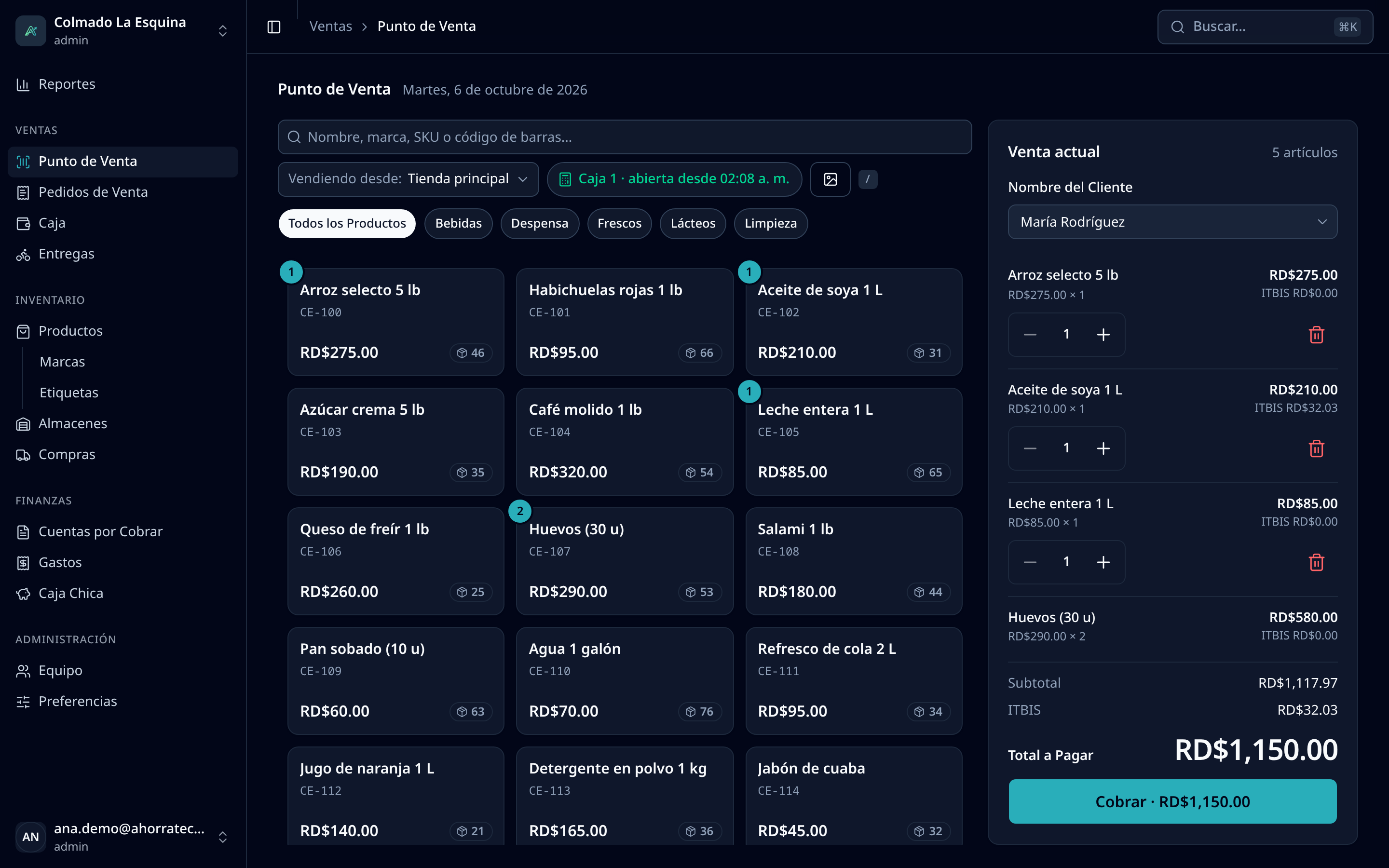
This guide covers the basics: signing in, switching businesses if you work for more than one, finding each screen in the menu and setting up the app the way you like it.
Your account
Accounts are created by AhorraTech or by your business’s administrator on the Team page. Each email has a single password, which works in every Ahorra POS business you work for.
- If your email is new to Ahorra POS, the person who adds you picks your first password and shares it with you.
- If your email already had an account, you sign in with the password you already use.
- If you get an invitation email, open it, type your New password (at least 10 characters) and repeat it in Confirm password. Tap Accept and set password and then Go to sign in. The link is valid for 7 days; if it expires, ask the business to resend it.
Sign in
- Open Ahorra POS in your browser.
- Enter your Email Address and your Password.
- Tap Sign in.
- If your email belongs to several businesses, you’ll see Select Account: pick the business you want to work in.
On the sign-in screen you can switch between Spanish and English for that visit only. Once inside, the app shows the language the administrator chose for the business.
Switch businesses
If you work for more than one business, you don’t need to log out. Tap the business name at the top of the side menu and, under Accounts, pick the other one. The app reloads with that business’s data.
The side menu
The menu groups the screens into Sales, Inventory, Finance and Administration, with Reports on top. Each person sees only what their roles allow:
- admin: the whole menu, including Team and Preferences.
- cashier: POS, Sales Orders, Cash Register, Accounts Receivable and Petty Cash.
- inventory: Products (with Brands and Tags) and Warehouses.
- procurement: Purchasing.
- delivery: Delivery and Petty Cash.
When they sign in, everyone lands on their main screen: cashiers and administrators on the POS, drivers on Delivery, purchasing staff on Purchasing. If a module isn’t included in your plan, it may show a lock and the note Not in your plan. There’s more in the team and roles article.
To hide or show the menu, use the button in the top-left corner or the Ctrl+B shortcut (⌘+B on a Mac).
Search with Ctrl+K
Press Ctrl+K (⌘+K on a Mac) or tap Search… in the top bar. Type part of a screen’s name and press Enter to go there. You can also change the theme or Log out from there.
Light, dark or system theme
- Tap your email at the bottom of the side menu.
- Under Theme, choose Light, Dark or System (follows your computer’s or phone’s setting).
The theme is saved in that browser, so you can use a different one at the register and on your phone. Log out is in the same menu.
On a computer, tablet or phone
Ahorra POS runs in the browser on any computer, tablet or phone, and needs an internet connection. On small screens the menu is hidden: open it with the button in the top-left corner. Drivers, for example, work their deliveries from their phone.
Tip: give each person their own account. That way each cashier opens and closes their own register and you know who made each sale.
Related articles
Didn’t find what you were looking for?
Write to us on WhatsApp or through the contact form and we will help.