Quotes and orders
How to find your orders, read their statuses, prepare a quote and charge it once the customer confirms.
Sales Orders holds everything your business has sold or quoted: open quotes, charged sales, credit sales and deliveries. From here you charge a quote, reprint a receipt or check what happened to an order.
Who can use it
The cashier and admin roles see Sales Orders in the menu and can create, edit and charge quotes. Voiding a sale or returning items is for admins only (see Void or return a sale).
Search and filter
- In Filter orders… type the order number, the customer’s name or a status.
- Status shows a single kind of order; Date narrows it to Today, This week or This month.
- Tap any row to open its detail. The printer icon reprints the receipt; a credit sale prints its credit invoice.
Order statuses
- Quote: saved without charging. It doesn’t deduct stock or hold the goods.
- Paid: charged in cash, by card or by transfer. The goods have left the warehouse.
- On credit: sold to a customer’s account; the balance is collected in Accounts Receivable.
- Shipped and Delivered: optional steps for a paid sale you ship on your own.
- Not delivered: an unpaid delivery that couldn’t be completed.
- Voided: a charged sale that was undone.
- Fully returned: shown next to the status once every item has been returned.
Create a quote
The quickest way is from the POS: build the cart, tap Checkout and choose Save as Quote (see Sell at the POS). You don’t need an open register to save quotes. You can also create one here:
- Tap Add order.
- Type the customer in Customer ID / Name and pick the Fulfillment Warehouse.
- Tap Create and confirm.
- Open the order and, in the items list, tap Add Item: pick the product, the Quantity and the Unit Price.
While it’s a quote you can edit each line with the pencil, remove it with the trash icon, add more items or delete the whole order with Delete Order.
Important: A quote doesn’t hold stock. If another customer buys those units first, the charge will tell you there isn’t enough stock.
Turn the quote into a sale
- Open your register if it’s closed (the detail offers Open register).
- Open the quote and tap Charge Order. The same charge window as the POS opens: fiscal receipt, payment method and amount received.
- To sell it on credit, tap Sell on credit (see Credit sales).
Once charged, the order becomes Paid (or On credit), the stock is deducted and, if your business issues e-CF, the fiscal receipt is issued. From then on it can’t be edited or deleted.
The order detail
When you open an order you’ll see:
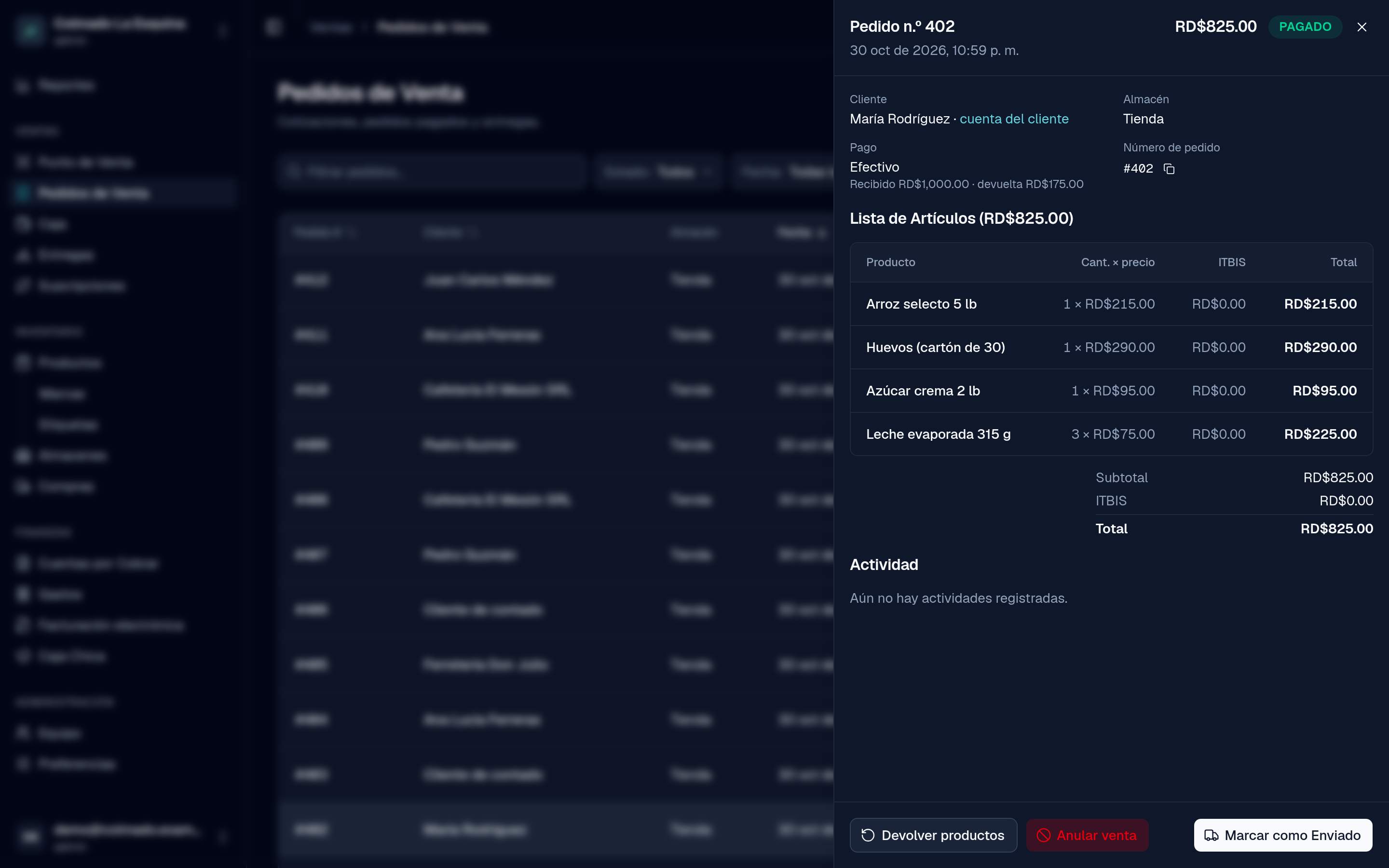
- Customer, Warehouse, Payment (with the cash received and change) and Order number.
- Receipt: the e-NCF and its DGII status, when the sale carries one.
- On credit: the Balance, the Due date and a link to the customer’s account.
- Delivery: the driver, phone, address and how long the order has been waiting.
- The items list with their ITBIS, the subtotal and the total.
- Returns, if any, with the reason, what came back and the credit note.
- Activity: what happened to the order after the sale, such as voids and returns, with date and time.
For a paid sale that isn’t a delivery, use Mark as Shipped and then Mark as Delivered if you want to track its dispatch.
Related articles
Didn’t find what you were looking for?
Write to us on WhatsApp or through the contact form and we will help.